Introduction: The Promise of Progressive Web Apps
When the concept of Progressive Web Apps (PWAs) was introduced, it promised to bridge the gap between web applications and native mobile apps. By leveraging modern browser capabilities, PWAs can be installed on a user's home screen, send push notifications, access device hardware, and—most importantly—work completely offline.
In 2026, PWAs are a standard deployment target for modern web applications, offering a lightweight, cross-platform alternative to native iOS and Android development.
However, achieving reliable offline capability remains one of the most challenging aspects of PWA development.
The most common complaint from users and QA testers is: "The app doesn't work when I turn off my internet." You test the app locally, configure your manifest, register your service worker, and everything seems fine. But the moment you toggle the browser to "Offline" mode, you are greeted by the dreaded "No Internet Connection" dinosaur screen.
In this comprehensive, production-grade guide, we will explore how offline capability works in modern browsers, analyze the 5 most common service worker pitfalls that break offline functionality, and provide a bulletproof, production-ready service worker template to resolve offline issues permanently.
What is a PWA & Why Offline Matters
A Progressive Web App is a standard website that utilizes modern web APIs to deliver an app-like experience. To be classified as an installable PWA by browsers like Google Chrome, Microsoft Edge, and Apple Safari, an application must meet three core criteria:
- HTTPS / SSL: The application must be served over a secure connection (except for
localhostduring development). - Web App Manifest: A
manifest.jsonfile that defines the app's name, icons, theme colors, and display mode. - Service Worker: A background JavaScript file that intercepts network requests, manages caching, and enables offline functionality.
Among these, the Service Worker is the engine that drives offline capability. Without a properly functioning service worker, your PWA is simply a standard website that requires a continuous, active internet connection to load.
How Offline Capability Works: The Cache-First Strategy
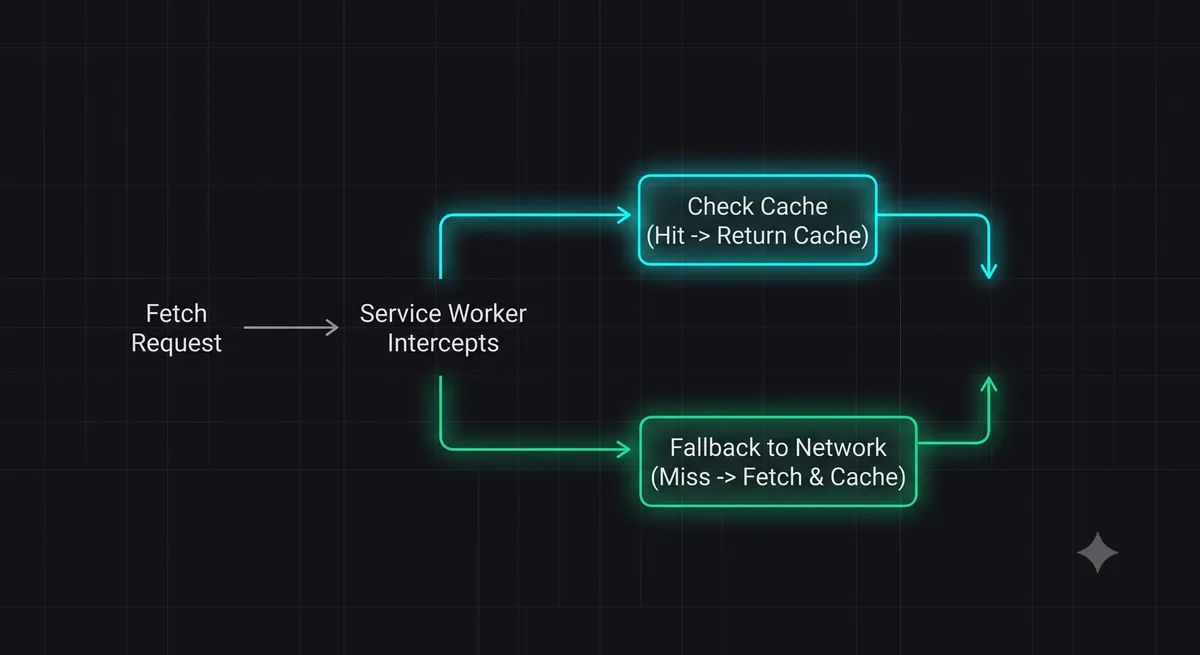
To make an application work offline, the service worker must implement a Cache-First Network Strategy.
A service worker acts as a local proxy server sitting between your web application and the internet. When the application requests an asset (such as an HTML page, a CSS stylesheet, an image, or an API response), the service worker intercepts the request:
- It checks the browser's Cache Storage to see if a cached copy of the requested asset exists.
- If a cached copy is found (a "Cache Hit"), the service worker immediately returns the cached asset, completely bypassing the network.
- If no cached copy exists (a "Cache Miss"), the service worker forwards the request to the internet, fetches the asset, saves a copy in the cache for future offline use, and returns the response to the application.
When the user's device goes offline, the service worker continues to intercept requests and returns cached assets, allowing the application to load and function seamlessly without an active internet connection.
5 Common Service Worker Pitfalls That Break Offline Mode
If your PWA fails to load offline, it is almost always caused by one of these five common architectural mistakes:
Pitfall 1: Incorrect Service Worker Scope
A service worker can only intercept network requests for files located in its own directory or nested subdirectories. If you place your service worker file at /js/sw.js, it can only intercept requests for assets inside the /js/ folder. It will fail to intercept requests for your main /index.html or /css/styles.css files.
The Fix: Always place your service worker file in the root directory of your project (e.g., /sw.js).
Pitfall 2: Failing to Cache the Offline Fallback Page
During the service worker's install phase, you must explicitly pre-cache all critical assets required for the app to boot offline (called "precaching"). If you forget to include /index.html or your offline fallback page in the precache list, the browser will have nothing to display when the network is cut.
The Fix: Always pre-cache /index.html, /manifest.json, and critical CSS/JS files during the install event.
Pitfall 3: Blocking the Service Worker Activation
When you update a service worker file, the browser installs the new version in the background but keeps it in a "waiting" state to prevent disrupting active tabs. Until the user closes all open tabs of your application, the old service worker remains active, preventing your updated caching rules from taking effect.
The Fix: Call self.skipWaiting() in the install event and clients.claim() in the activate event to instantly activate updated service workers.
Pitfall 4: Caching Conflicting HTTP Methods
The browser's Cache Storage API can only store successful GET requests. If your service worker attempt to cache non-GET requests (like POST form submissions, PUT updates, or DELETE requests), the Cache API will throw an error, halting the service worker's execution and breaking offline mode.
The Fix: Always verify that request.method === 'GET' before attempting to match or cache a request.
Pitfall 5: Hardcoding Outdated Cache Names
If you update your application's CSS or JS files but do not update the cache name in your service worker, the browser will continue to serve the old, cached versions of your assets, preventing users from seeing updates.
The Fix: Use a versioned cache name (e.g., const CACHE_NAME = 'v1.0.2') and delete old caches during the service worker's activate event.
Bulletproof Service Worker Template
Here is a complete, production-ready service worker template (sw.js) that implements a robust cache-first strategy, handles dynamic caching, manages activation, and provides a clean offline fallback page:
// sw.js - Production PWA Service Worker (2026)

const CACHE_NAME = 'the-byte-404-cache-v1';
const PRECACHE_ASSETS = [
  '/',
  '/index.html',
  '/manifest.json',
  '/about.html',
  '/contact.html',
  '/privacy-policy.html',
  '/terms-of-use.html',
  '/tools/http-status-lookup.html',
  '/tools/gitignore-generator.html',
  '/tools/json-formatter.html',
  '/tools/regex-tester.html'
];

// 1. Install Event: Pre-cache critical assets
self.addEventListener('install', (event) => {
  event.waitUntil(
    caches.open(CACHE_NAME)
      .then((cache) => {
        console.log('[Service Worker] Pre-caching critical assets');
        return cache.addAll(PRECACHE_ASSETS);
      })
      .then(() => self.skipWaiting()) // Force active activation
  );
});

// 2. Activate Event: Clean up old caches
self.addEventListener('activate', (event) => {
  event.waitUntil(
    caches.keys().then((cacheNames) => {
      return Promise.all(
        cacheNames.map((cache) => {
          if (cache !== CACHE_NAME) {
            console.log('[Service Worker] Deleting old cache:', cache);
            return caches.delete(cache);
          }
        })
      );
    }).then(() => self.clients.claim()) // Claim active clients
  );
});

// 3. Fetch Event: Intercept and serve from cache
self.addEventListener('fetch', (event) => {
  // Only handle GET requests
  if (event.request.method !== 'GET') return;

  event.respondWith(
    caches.match(event.request)
      .then((cachedResponse) => {
        if (cachedResponse) {
          return cachedResponse; // Return cache hit
        }

        // Cache miss: Fetch from network
        return fetch(event.request)
          .then((networkResponse) => {
            // Check if valid response
            if (!networkResponse || networkResponse.status !== 200 || networkResponse.type !== 'basic') {
              return networkResponse;
            }

            // Clone response to save in cache
            const responseToCache = networkResponse.clone();
            caches.open(CACHE_NAME)
              .then((cache) => {
                cache.put(event.request, responseToCache);
              });

            return networkResponse;
          })
          .catch(() => {
            // Offline fallback for HTML pages
            if (event.request.headers.get('accept').includes('text/html')) {
              return caches.match('/index.html');
            }
          });
      })
  );
});
How to Debug Offline PWAs
To verify and debug your PWA's offline capability, utilize Google Chrome's Chrome DevTools:
- Open your application in Chrome, right-click, and select Inspect to open DevTools.
- Navigate to the Application tab in the top menu.
- In the left sidebar, click on Service Workers. Verify that your service worker is registered, active, and running.
- Check the "Offline" checkbox in the Service Workers panel to simulate a complete network cut.
- Refresh the page. If your service worker is configured correctly, your application will load instantly from the cache, showing no network errors.
Conclusion: Deliver a Flawless Offline Experience
Offline capability is the defining feature of a true Progressive Web App. By understanding the service worker lifecycle, placing your files in the correct directory scope, and implementing a robust, GET-only cache-first strategy, you can eliminate offline loading failures permanently.
With a bulletproof service worker in place, your PWA will deliver a lightning-fast, native-app-like experience that keeps your users engaged, regardless of their network connectivity.
To test your application's offline asset responses, launch our interactive HTTP Status Lookup Tool, or check out our guide on Tailwind v4 Layout Fixes to optimize your frontend styles.