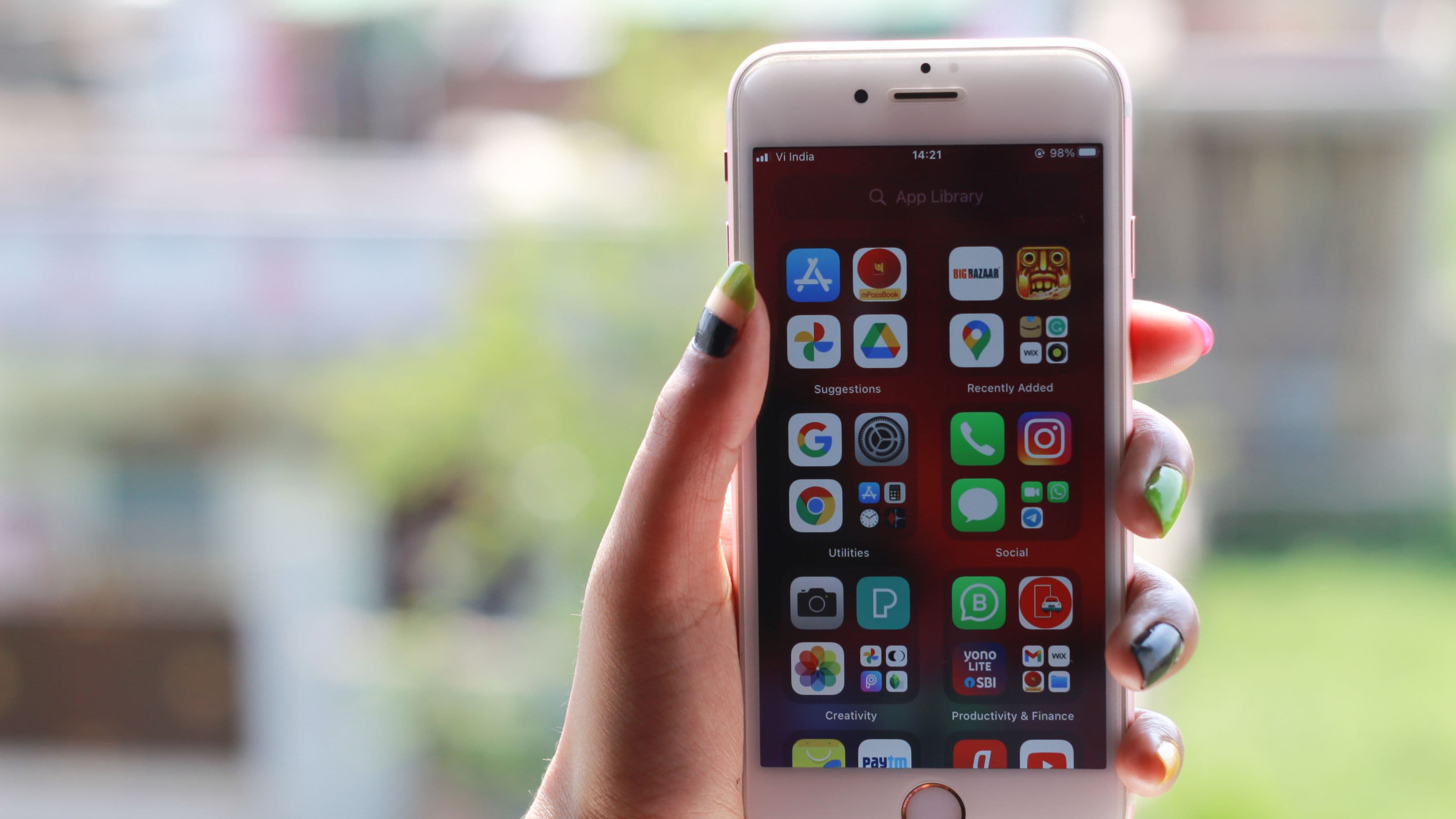

Notifications were designed to be impossible to ignore. That's not an accident – it's the product of years of behavioral science applied by some of the most well-funded engineering teams on the planet. The red badge, the buzz, the chime – these are Pavlovian triggers, and they work. The problem is that they work against you. Every alert pulls your brain out of whatever it was doing and reroutes it toward a new input, and the cost of that context switch is higher than most people realize.
The good news is that fixing this is mostly a settings problem, not a willpower problem. Here's how to actually do it.
Why Notifications Hit So Hard (The Science Behind the Interruption)
Before jumping into fixes, it's worth understanding what's actually happening when a notification interrupts you – because the damage is bigger than the interruption itself.
Research from the University of California, Irvine found that it takes an average of 23 minutes to fully return to a task after being interrupted. That's not 23 minutes of recovery for every notification – most people don't fully lose their thread on every buzz – but it illustrates the underlying truth: deep focus is fragile, and repeated interruptions don't just waste seconds, they prevent you from ever reaching the kind of sustained attention where your best thinking happens.
There's also a subtler problem. Even when you don't act on a notification – when you hear the buzz and choose not to look – the mere knowledge that a notification is waiting degrades your cognitive performance. A study published in the Journal of Experimental Psychology found that receiving a notification and not checking it was almost as distracting as actually checking it. The interrupt had already landed.
This is why the solution isn't better willpower or ignoring notifications harder. It's removing the triggers in the first place.
Step 1: Do a Full Notification Audit
Most people have never actually looked at which apps are sending them notifications and consciously decided whether each one earns the right to interrupt their day. They just accepted the defaults when they installed each app, and the defaults are always set to maximum interruption because that serves the app, not the user.
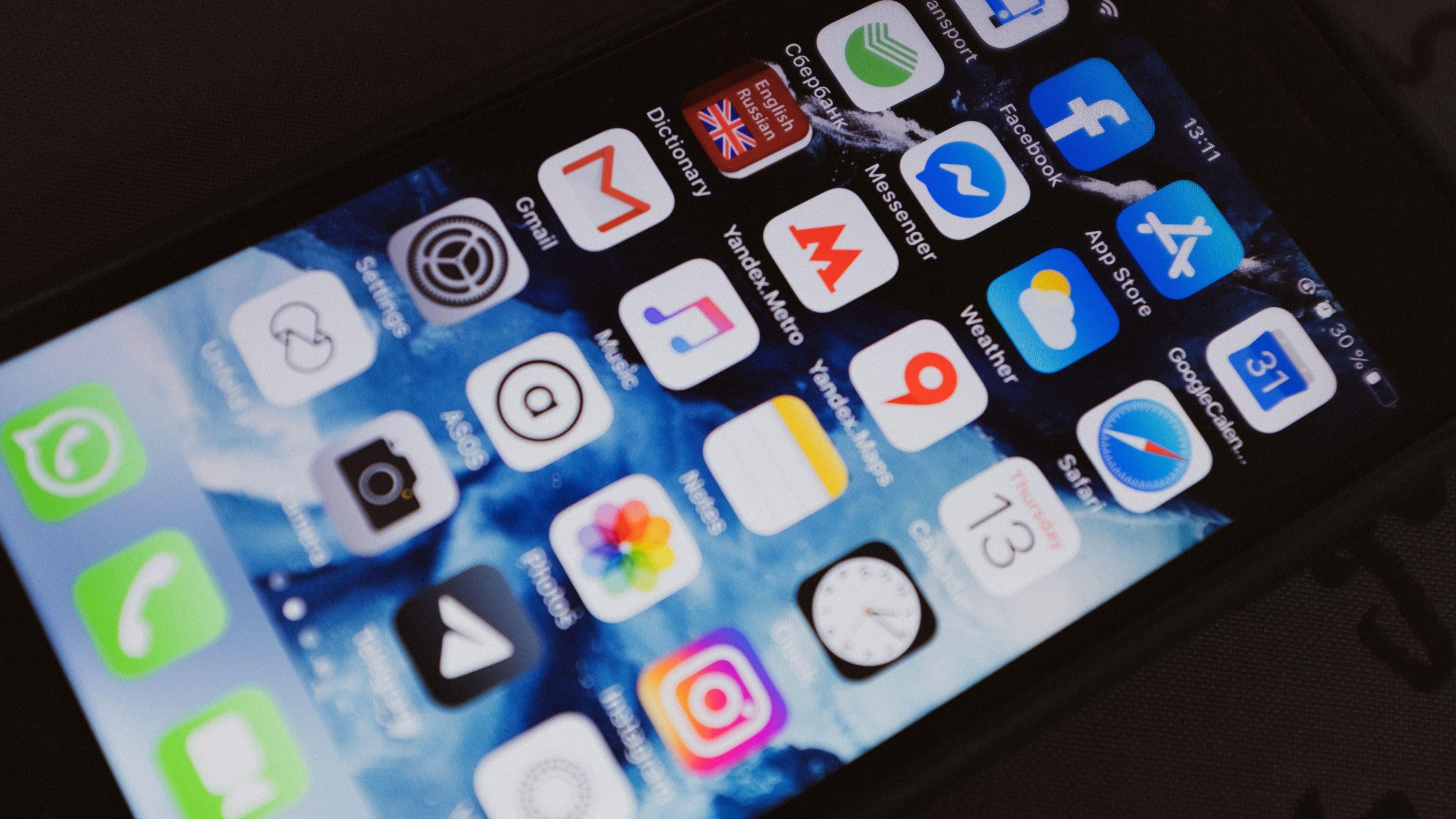
Start by going to your phone's notification settings and reading through every app with notifications enabled. On iOS, that's Settings → Notifications. On Android, it's Settings → Apps → Notifications (or similar, depending on your manufacturer). Go through each one and ask a single honest question: does this app need to reach me in real time? For most apps, the answer is no. Email, most social media, news apps, shopping apps, games – none of these have genuine urgency. Turn them off entirely.
The apps that typically earn real-time alerts are: direct messages from people you actually talk to, calls, calendar reminders, banking fraud alerts, and apps you've specifically set up to alert you to something time-sensitive. That list is much shorter than what most notification panels contain.
Step 2: Go Deeper on the Ones You Keep
For the notifications you decide to keep, the default settings are usually still overkill. Most apps notify you with sound, a banner, a lock screen appearance, a notification center entry, and a badge icon simultaneously. You rarely need all of those for any single app.
Consider separating notification delivery by context. For a messaging app you want to stay reachable on, you might keep sound on during certain hours and switch to badge-only (or nothing) during focused work time. For email, a badge count is usually enough – you don't need a banner interrupting you every time a message arrives if you're going to check your inbox at set times anyway. The goal is to match the delivery method to the actual urgency of the app, rather than accepting the highest-intensity setting as standard.
On both iOS and Android, you can also turn off notification previews on the lock screen – so that when a notification does arrive, it doesn't show the content. This removes the pull of partially visible information, which is one of the strongest triggers for picking up your phone in the first place.
Step 3: Use Focus Modes and Do Not Disturb Properly
Both iOS and Android have built-in focus systems that let you schedule notification filtering without manually toggling anything. Most people have Do Not Disturb turned on for sleeping and nothing else. That's leaving a lot of value on the table.
On iOS, Focus modes let you create multiple named states – Work, Personal, Reading – each with their own allowed apps and contacts. You can set a Work focus to allow calls from your team and calendar alerts, while silencing everything else, and have it activate automatically on weekdays between 9am and 12pm. On Android, Focus mode (in Digital Wellbeing settings) lets you pause specific distracting apps entirely during set periods, which is even more aggressive – the apps themselves become inaccessible, not just silenced.
The key is making these automatic rather than manually activated. A focus mode you have to remember to turn on will get forgotten. One that starts when you sit down at your desk and ends at lunch runs on its own and becomes part of your environment rather than another task on your list.
Step 4: Fix Your Computer Notifications Too
Phones get most of the attention in focus conversations, but desktop and laptop notifications are equally destructive during work sessions. Slack pings, email popups, calendar reminders, browser notifications from news sites, system alerts – these all operate the same way as phone notifications, and they interrupt the same focused attention.
The most effective desktop fix is turning off all notification banners in your operating system settings and moving to scheduled checking instead. On macOS, go to System Settings → Notifications and go through each app the same way you did on your phone. On Windows 11, it's Settings → System → Notifications. Turn off banners and sounds for anything that isn't genuinely time-critical.
For Slack specifically – the platform single-handedly responsible for an enormous amount of workplace attention fragmentation – the most impactful change you can make is setting notification delivery to "Every 15 minutes" or turning off all notifications during deep work hours and checking on your own schedule. The norm of instant Slack responses is a cultural expectation, not a technical requirement, and it's worth pushing back on it.
Step 5: Create Physical and Environmental Boundaries
Settings changes handle the digital side, but physical habits handle the psychological side. Even a silenced phone sitting face-up on your desk still has pull – the mere presence of a smartphone in your field of view has been shown to reduce available cognitive capacity, even when it's turned off. This is sometimes called the "brain drain" effect, from research published in the Journal of the Association for Consumer Research.
The practical implication is simple: put your phone in another room, or at minimum face-down in a drawer, during focused work periods. Out of sight genuinely means out of mind in this context, in a way that silencing it but keeping it visible doesn't fully achieve.
The same principle applies to browser tabs. Having 15 tabs open – including email, social media, and news – while trying to write or think is the desktop equivalent of keeping your phone face-up on the desk. Tab management tools like OneTab or Arc's space system help contain this. At minimum, close tabs you're not actively using while working on anything that requires sustained thought.
Step 6: Set a Checking Schedule and Tell People About It
The anxiety that drives constant notification-checking – the worry that you're missing something important – is often less about actual urgency and more about habit and social expectation. Most of what arrives in your notifications is not time-sensitive. It just feels that way because you've been conditioned to treat it that way.
Replacing reactive checking with scheduled checking breaks that conditioning. Pick two or three specific times in your day when you'll check email, review Slack, and look at social notifications. Outside of those windows, the feeds stay closed. It sounds rigid, but in practice most people find that nothing they were checking continuously actually required that frequency, and the people in their lives adapt quickly.
If you work in a team environment, communicating your response windows is worth doing once. "I check email at 9am, noon, and 4pm. For anything urgent, call me." That single sentence sets an expectation that makes the whole system work without generating anxiety on either end.
What Not to Do
The most common mistake is trying to use notification management as a willpower exercise. Leaving all your notifications on and just deciding to ignore them more is not a strategy – it's asking your brain to do a job it's not well-equipped to do, because the triggers are designed to work even when you're trying to resist them.
A subtler mistake is performing the settings changes without changing the checking habit that drove the notifications in the first place. If you turn off Instagram notifications but open the app 40 times a day anyway, you've solved a symptom without touching the root behavior. The notification and the checking habit feed each other – address both, or the gains will be partial.
And be realistic about what counts as an emergency. Most things that feel urgent when they arrive are not actually urgent. The skill of distinguishing between "this can wait an hour" and "this genuinely cannot" is one worth developing, because it's what makes a checking schedule feel sustainable rather than stressful.
FAQ
Will turning off notifications make me miss important things? Rarely, and less often than you'd expect. Genuinely urgent things – a family emergency, a critical work issue – usually come via phone call, not a push notification. Most notifications are informational, not urgent. You'll still see everything; you'll just see it on your schedule rather than in real time.
How do I handle work environments where fast responses are expected? This is a cultural issue as much as a technical one. In many teams, the expectation of immediate Slack or email responses has developed by default rather than by design. It's worth having a direct conversation about actual response time requirements. Many people find their managers are more flexible than assumed once the topic is raised explicitly.
Are there apps that help with this? Yes. Freedom and Cold Turkey let you schedule app and website blocks on both desktop and mobile. Focus@Will and Brain.fm provide audio environments designed to support sustained attention. Forest gamifies phone-free work sessions. These are supplements to settings changes, not replacements for them.
What about smartwatches – don't those just move the problem to your wrist? Yes, exactly. A smartwatch that mirrors all your phone notifications has moved the interruption closer to your nervous system, not eliminated it. If you use a smartwatch, auditing its notification settings is at least as important as the phone audit. Consider only allowing calls and health alerts on the watch.
How long before I notice a difference? Most people notice a meaningful shift within a few days of aggressively cutting notifications. The first day or two often involves phantom check urges – reaching for your phone out of habit even though nothing's there. That fades quickly. Within a week, most people report feeling less reactive and more able to settle into longer work periods.
📚 Sources
University of California Irvine – A Diary Study of Task Switching and Interruptions: https://ics.uci.edu/~gmark/chi08-mark.pdf
Journal of Experimental Psychology – Smartphone Notifications and Attention: https://doi.org/10.1037/xge0000270
Journal of the Association for Consumer Research – Brain Drain: The Mere Presence of One's Own Smartphone: https://www.journals.uchicago.edu/doi/10.1086/691462
Apple Support – Use Focus on iPhone: https://support.apple.com/en-us/HT212608
Android Help – Use Digital Wellbeing and Focus Mode: https://support.google.com/android/answer/9346420
Nir Eyal – Indistractable: How to Control Your Attention and Choose Your Life: https://www.nirandfar.com/indistractable/
Cal Newport – Deep Work and the attention economy: https://calnewport.com/deep-work-rules-for-focused-success-in-a-distracted-world/
Harvard Business Review – To Control Your Life, Control What You Pay Attention To: https://hbr.org/2018/03/to-control-your-life-control-what-you-pay-attention-to
Wired – The Science of Why You Can't Stop Checking Your Phone: https://www.wired.com/story/phone-addiction-formula/
Freedom App – How to Block Distracting Websites and Apps: https://freedom.to/blog/how-to-block-distracting-websites/