This guide lays out a practical, sustainable system for organizing your digital files that won't collapse three weeks after you set it up.
Why Most Organization Attempts Fail
Before building anything new, it helps to understand why previous attempts probably didn't last. Most people approach digital organization the same way they approach cleaning a messy room – they tidy up reactively, put things roughly where they seem to belong, and call it done. The problem is that without a consistent naming convention, a clear folder logic, and a habit of filing things as they arrive, the chaos rebuilds itself almost immediately.
The other common failure mode is over-engineering. People create elaborate nested folder structures with fifteen subcategories, spend a weekend migrating everything perfectly, and then abandon the system entirely because it's too much friction to maintain day-to-day. A good file organization system should be simple enough that filing something takes no more than a few seconds. If it takes longer than that, the system will eventually lose to the habit of just dumping everything in one place.
Step 1 – Choose Where Your Files Actually Live
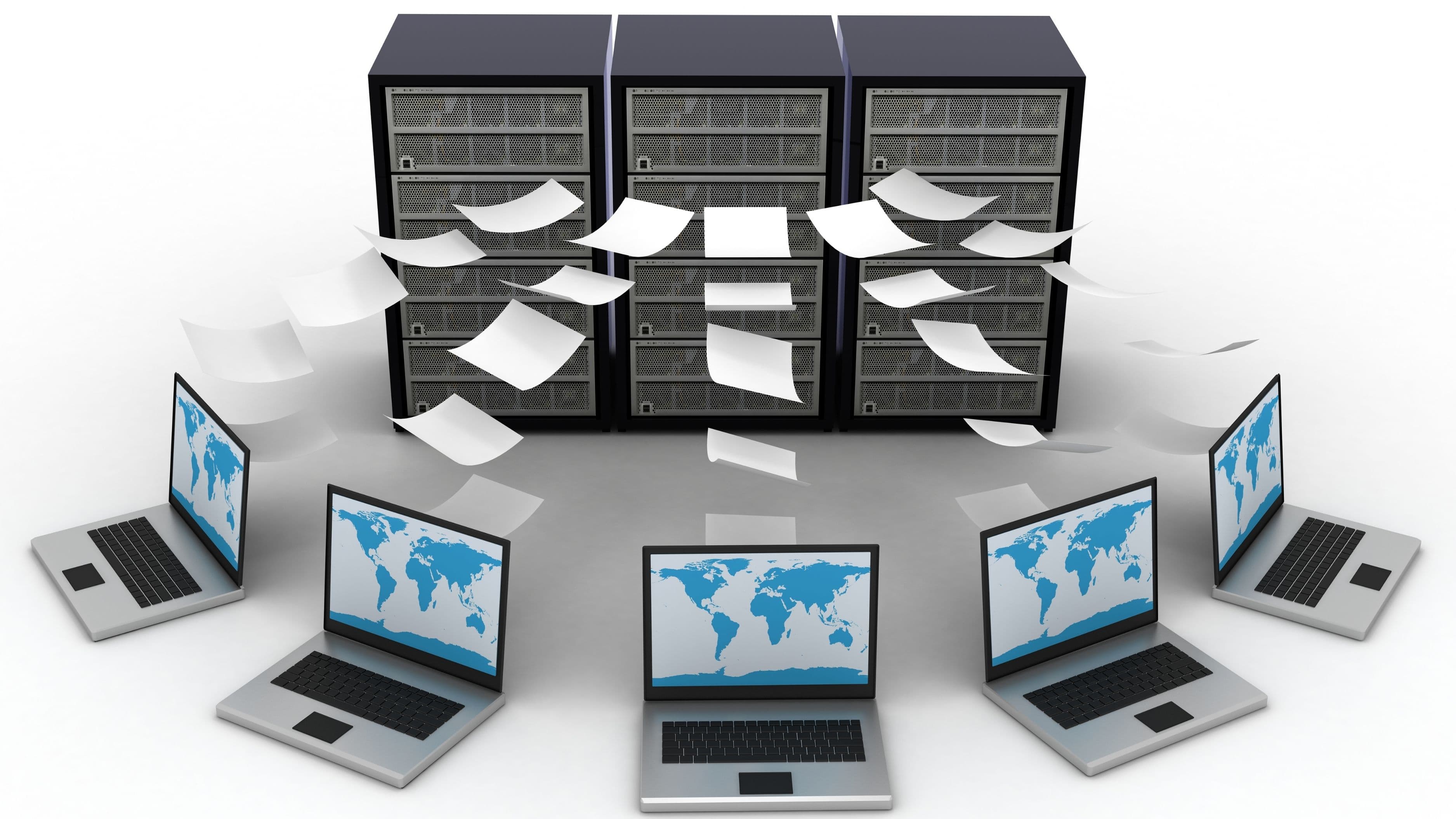
Before organizing anything, you need to decide on a single source of truth for your digital files. This is more important than it sounds. Most people have files scattered across their desktop, multiple Downloads folders, an external hard drive they haven't opened in two years, iCloud or Google Drive, and maybe a work laptop with its own mess. The first step is deciding where your primary file system lives – and committing to it.
For most people, the best choice in 2025 is a cloud-based storage system like Google Drive, iCloud Drive, or OneDrive. These sync automatically across devices, back up your files without you thinking about it, and are accessible from anywhere. Pick one and use it as your home base. If you prefer local storage for privacy or performance reasons, that's valid – but pair it with a dedicated external backup drive and an automated backup schedule, because local-only storage with no redundancy is one hardware failure away from disaster.
The important thing isn't which platform you choose – it's that you choose one and stop splitting your files across multiple places. Consolidation is the real first step.
Step 2 – Build a Folder Structure That Matches Your Life
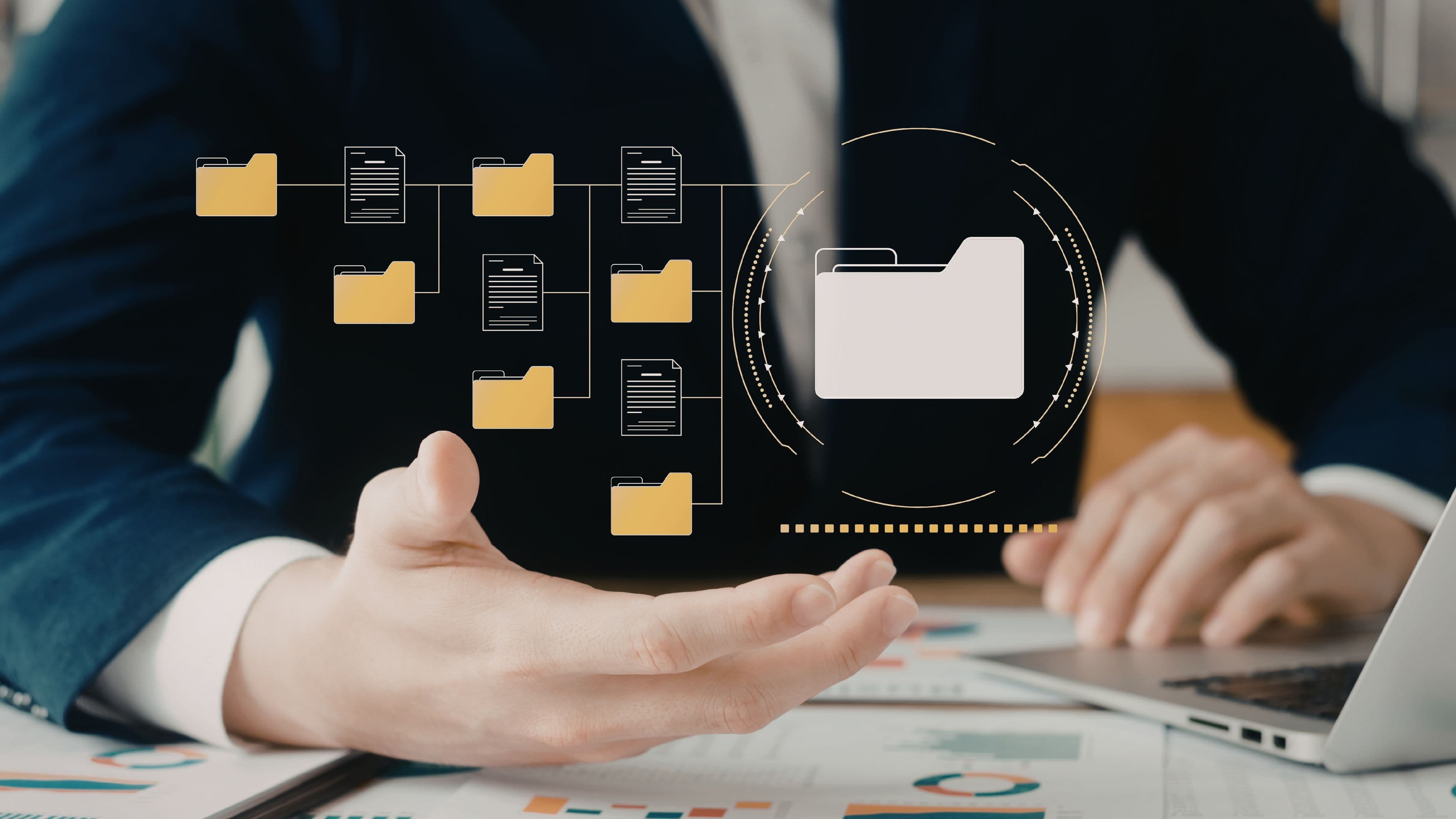
The best folder structure is one that mirrors how you actually think about your files, not some theoretical ideal. There are two common approaches, and both work depending on how your brain operates.
The life-area approach organizes folders around the major categories of your life: Work, Personal, Finance, Health, Home, Creative Projects, and so on. Each of these becomes a top-level folder, with subfolders inside as needed. This works well for people who think in terms of context – when you need a file, you ask yourself "what area of my life does this belong to?" and navigate from there.
The project-based approach organizes everything around specific projects or entities rather than broad life areas. Instead of a "Work" folder with everything inside it, you have a folder for each client, job, or active project. This suits freelancers, contractors, and anyone whose work life involves distinct, defined projects rather than an ongoing role.
Either approach is fine. What matters is that your top-level folders are broad enough to be stable over time but specific enough that there's no ambiguity about where something belongs. Aim for between five and ten top-level folders – fewer than five often means things get lumped together awkwardly, more than ten starts to feel like work every time you file something.
A reasonable starting structure for most people looks something like this:
Work (or individual client/project folders if project-based)
Finance (bank statements, tax documents, invoices, receipts)
Personal (ID documents, medical records, insurance, legal)
Home (property documents, appliance manuals, renovation records)
Media (photos, videos, music – organized by year or event)
Learning (courses, notes, ebooks, reference material)
Archive (completed projects and old documents you rarely need but want to keep)
Step 3 – Create a Naming Convention and Actually Use It
Folder structure gets all the attention, but file naming is where most organization systems quietly break down. You can have a perfect folder hierarchy and still spend five minutes hunting for a file because it's named "FINAL_v3_ACTUALLY_FINAL.docx" or "Untitled Document (2)."
A consistent naming convention solves this. The simplest and most universally useful format puts the date first, in YYYY-MM-DD format, followed by a brief descriptive name. For example:
2025-04-15_Tax-Return-2024
2025-03-01_Client-Proposal-Acme
2025-05-03_Home-Insurance-Policy-Renewal
Starting with the date in this format means files sort chronologically by default in any file browser, which makes finding recent versions of things extremely fast. The descriptive name should be specific enough to be unambiguous but short enough to scan quickly. Avoid spaces in filenames if you work across different operating systems or share files frequently – hyphens or underscores are cleaner.
For projects that generate multiple versions of a file, add a version indicator at the end: v1, v2, _FINAL. And once something is genuinely final, archive the intermediate versions rather than keeping them cluttering up your active folder.
Step 4 – Deal With the Existing Backlog
Once your system is built, you'll face the same problem everyone faces: a mountain of existing disorganized files that need to be migrated. This is the step that causes most people to abandon the whole project, because trying to organize years of digital chaos in one sitting is genuinely exhausting.
The most practical approach is the two-track method. For your existing backlog, create a single folder called "_Unsorted" or "_Inbox" (the underscore pushes it to the top of your folder list) and dump everything in there. Don't try to organize it yet. Then start using your new system immediately for everything new coming in. Set aside 20–30 minutes once a week to work through the backlog folder, filing things properly or deleting what you don't need. Over a few weeks or months, the backlog gets processed at a manageable pace without derailing your daily workflow.
The temptation is to do a big-bang migration and get everything perfect before you start using the new system. Resist it. The new system needs to become a habit first, and habits form through repeated use – not through a single perfect weekend of organization.
Step 5 – Set Up a Capture Inbox
One of the most useful things you can add to your system is a designated Inbox folder at the top level of your file structure – a single place where everything lands when it first arrives, before it gets filed properly. New downloads, documents you're not sure where to put yet, screenshots you grabbed quickly, files from email attachments – everything goes into the Inbox first.
The Inbox only works if you empty it regularly. A weekly file sweep of 10–15 minutes, where you go through what's accumulated and move each item to its proper place, keeps the system clean without requiring you to make filing decisions in the moment every time. For many people, this weekly sweep becomes a satisfying ritual – a small act of maintenance that keeps the larger system from degrading.
The key rule: the Inbox is a temporary holding area, not a secondary dump folder. If files are sitting in your Inbox for more than a few weeks without being filed, either your folder structure has a gap that needs addressing or the habit of the weekly sweep isn't sticking yet.
Step 6 – Handle Photos Separately
Photos deserve their own mention because they're often the most voluminous and emotionally significant part of anyone's digital file collection – and they tend to be the most chaotic. The most durable system for personal photos is chronological organization by year and event, within a dedicated Photos folder that lives separately from your other files.
A simple structure works well: top-level Photos folder, subfolders by year (2024, 2023, 2022), and within each year, subfolders by event or month (2024-06-Italy-Trip, 2024-12-Christmas). This structure is easy to navigate, grows naturally over time, and maps to how people actually remember and search for photos – by when something happened or what it was.
For the actual management and backup of photos, Google Photos, Apple Photos, or Amazon Photos all offer automatic backup with solid organizational tools. Using one of these alongside your manual folder structure gives you both a searchable, backed-up archive and organized local copies. The critical thing, regardless of which tool you use, is that your photos are backed up in at least two places – ideally one local and one cloud – because photo loss is one of the most irreversible forms of digital disaster.
Step 7 – Automate What You Can
Once your system is running, a few simple automations can significantly reduce the maintenance burden. Most operating systems and cloud storage platforms support rules or shortcuts that can help.
On Mac, Hazel is a powerful utility that can automatically watch specific folders – like your Downloads folder – and move or rename files based on rules you define. Files matching certain keywords or file types can be routed to the right folder automatically. On Windows, similar functionality is available through built-in folder options or tools like File Juggler. These automations are particularly valuable for recurring file types: bank statements that always arrive as PDFs with a consistent naming pattern, for example, can be automatically moved to your Finance folder and renamed correctly without any manual intervention.
Even without dedicated automation tools, setting your browser to save downloads to your Inbox folder rather than a generic Downloads folder is a simple change that keeps new files flowing into your system consistently rather than piling up in a separate location you check intermittently.
What to Avoid
A few habits that undermine even well-built file systems are worth calling out directly.
Using your desktop as a working area is one of the most common. A file or two on the desktop for an active project is fine – a desktop covered in fifty icons is essentially the same problem as no organization at all, just with a visual element. Keep your desktop clear as a rule, and use your Inbox folder as the actual staging area for active work.
Creating folders before you need them is another trap. It's tempting to build out an elaborate structure in advance "just in case," but empty folders are visual noise and make your system feel more complicated than it is. Create folders when you actually have something to put in them.
Finally, never delete your Archive folder mentality. When a project ends or a period of your life closes, move those files to an Archive folder rather than leaving them in your active structure. An archive keeps your working folders clean without permanently losing anything. Digital storage is cheap – the habit of archiving rather than deleting everything is a sensible balance between tidiness and preservation.
FAQ
How often should I do a file maintenance sweep? Once a week for your Inbox folder, which should take 10–15 minutes. A deeper quarterly review – where you check for files that have drifted out of place, consolidate duplicate folders, and clear out what you no longer need – keeps the broader system healthy without requiring constant attention.
Should I store everything in the cloud or keep local copies? Ideally both, following the 3-2-1 backup rule: three copies of your data, on two different storage types, with one copy off-site (which cloud storage handles automatically). For most people, this means using cloud storage as your primary location and maintaining a periodic local backup to an external drive. The cloud alone is sufficient for most everyday files, but having a local copy protects you from account issues, internet outages, and the occasional cloud service shutting down.
What's the best way to handle work files alongside personal files? Keep them entirely separate. If your employer provides cloud storage or a work laptop, keep all work files within that system. Your personal file system should contain only personal files. Mixing the two creates confusion, potential privacy issues, and complications when you change jobs.
How do I find files quickly without remembering exactly where I put them? A consistent naming convention is your best tool here – especially the date-first format, which makes chronological searches extremely fast. Beyond that, your operating system's search function (Spotlight on Mac, Windows Search on PC) is genuinely powerful if your files are named descriptively. The more specific and consistent your file names, the more reliable search becomes as a navigation tool.
Is it worth using tags or colors to organize files? Tags can be useful as a secondary organizational layer – particularly for flagging active projects, files that need action, or items across multiple folders that belong to a related topic. They work best as a supplement to a well-structured folder system rather than a replacement for it. Over-tagging creates its own form of maintenance overhead, so use them sparingly and only where they genuinely add speed to finding things.
A well-organized file system isn't something you build once and never think about again – but it also shouldn't demand significant ongoing effort. Get the structure right, name things consistently, process your Inbox weekly, and let the system do its job quietly in the background.
The goal isn't perfection. It's creating an environment where finding what you need takes seconds rather than minutes, and where the slow accumulation of digital clutter stops being a source of low-grade frustration in your day.
📚 Sources
How File Systems Work – HowStuffWorks: https://computer.howstuffworks.com/file-system.htm
The 3-2-1 Backup Rule Explained – Backblaze: https://www.backblaze.com/blog/the-3-2-1-backup-strategy
Google Drive Storage and Organization Guide – Google Support: https://support.google.com/drive/answer/2375091
Windows Search and File Indexing – Microsoft Support: https://support.microsoft.com/en-us/windows/search-for-anything-anywhere-b14cc5bf-c92a-1e73-ea18-2845891e6bae
Hazel Automation for Mac – Noodlesoft: https://www.noodlesoft.com
Digital Minimalism and File Management – Cal Newport, Study Hacks Blog: https://calnewport.com/blog