Introduction: The Evolution of AI Coding Assistants
When GitHub Copilot first launched, it acted as a highly capable inline autocomplete engine. It predicted the next line of code, completed repetitive loops, and drafted basic function signatures based on comments.
While revolutionary at the time, this workflow remained highly manual. The developer had to open the correct file, place their cursor at the precise location, trigger the AI, review the output, and manually repeat the process across multiple files to implement a single, cohesive feature.
In 2026, we have transitioned from passive inline autocomplete to autonomous, agentic coding environments.
GitHub Copilot Workspace represents the pinnacle of this evolution.
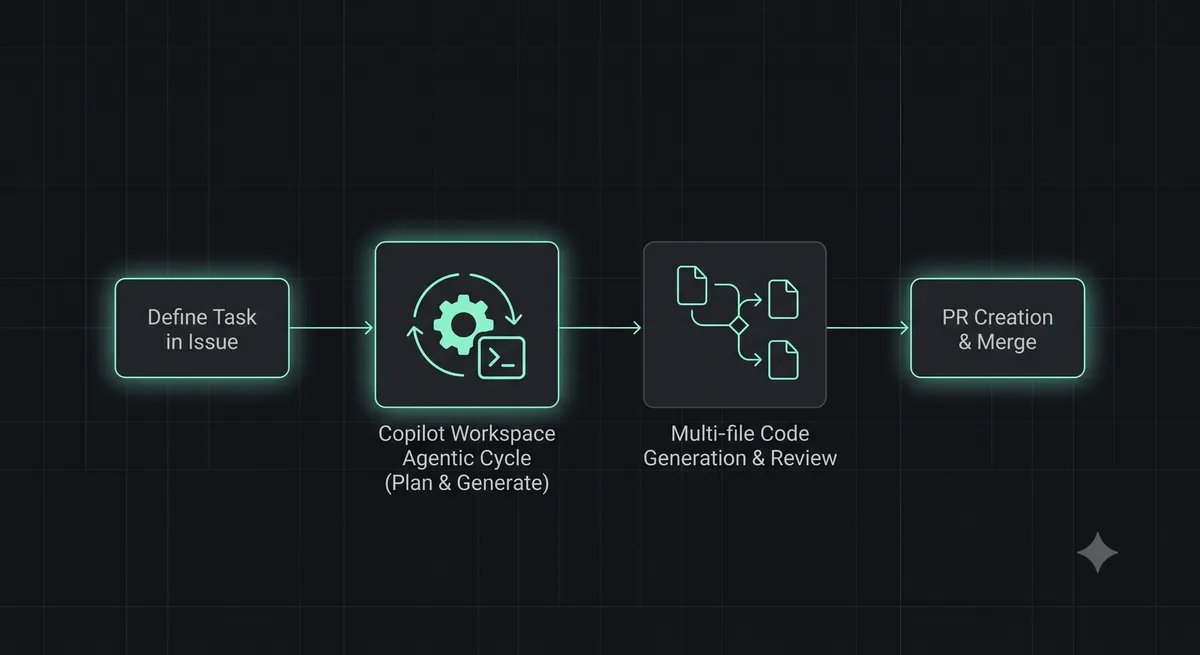
Instead of operating inside a single file, Copilot Workspace operates at the repository and issue level. It reads a GitHub Issue, analyzes your entire codebase, drafts a multi-file implementation plan, executes the changes across multiple files in parallel, runs local tests inside an isolated container, and automatically opens a Pull Request (PR) with the completed feature.
In this comprehensive tutorial, we will explore the core architecture of GitHub Copilot Workspace. You will learn how to initialize tasks, review and edit agentic plans, execute complex multi-file feature branching, and integrate this powerful tool into your daily engineering workflows.
What is GitHub Copilot Workspace?
GitHub Copilot Workspace is a web-based, AI-native development environment integrated directly into the GitHub platform.
Unlike local IDE extensions, Workspace has complete, native access to your repository's issue tracker, pull requests, discussion boards, and CI/CD pipelines. It is designed to take you from a natural language description of a task (a GitHub Issue) to a fully implemented, tested, and reviewable branch of code.
The core philosophy of Workspace is collaborative steering. The AI does not operate in a black box; instead, it presents its reasoning, file selections, and code drafts in a highly visual, step-by-step pipeline. The developer acts as the "pilot," reviewing, editing, and approving the AI's plan at every milestone.
The Agentic Paradigm Shift: From Code to Intent
To use Copilot Workspace effectively, developers must shift their mindset from writing code to defining intent.
In a traditional workflow, you spend 80% of your time writing and debugging syntax, and 20% planning architecture. In Workspace, this ratio is reversed. You spend 80% of your time clearly defining the requirements, reviewing architectural plans, and guiding the AI, while the AI handles 100% of the syntax generation.
This shift allows engineers to operate at a much higher level of abstraction, building complex features in minutes that would historically take days.
Step-by-Step Tutorial: Implementing a Feature
Let's walk through a real-world scenario: implementing a new user profile feature in a Next.js and Supabase application.
Step 1: Create a GitHub Issue
Write a detailed, structured GitHub Issue describing the feature. The more specific your requirements, the better the AI's initial plan:
Issue Title: "Feature: Implement User Profile Settings Page"

Description:

- Create a new page at /settings/profile styled with Tailwind CSS.

- Fetch the current user's profile data from the Supabase 'profiles' table.

- Render a form with inputs for 'full_name', 'bio', and 'website'.

- Implement client-side validation using Zod.

- Write a Next.js Server Action to update the profile record in PostgreSQL on submit.

- Display a success toast notification upon successful update.
Step 2: Open the Issue in Copilot Workspace
On the GitHub Issue page, click the prominent "Open in Workspace" button in the right sidebar. This initializes a secure, cloud-hosted container containing your repository's latest code.
Step 3: Review the Specification & Plan
Workspace will analyze the issue and automatically generate two key documents:
- Specification: A structured breakdown of the requirements.
- Plan: A step-by-step list of file creations, modifications, and deletions.
Review the plan carefully. If the AI missed a file (e.g., it forgot to update the navigation bar to link to the new page), click "Edit Plan" and manually add the file and instruction.
Multi-File Feature Branching in Action
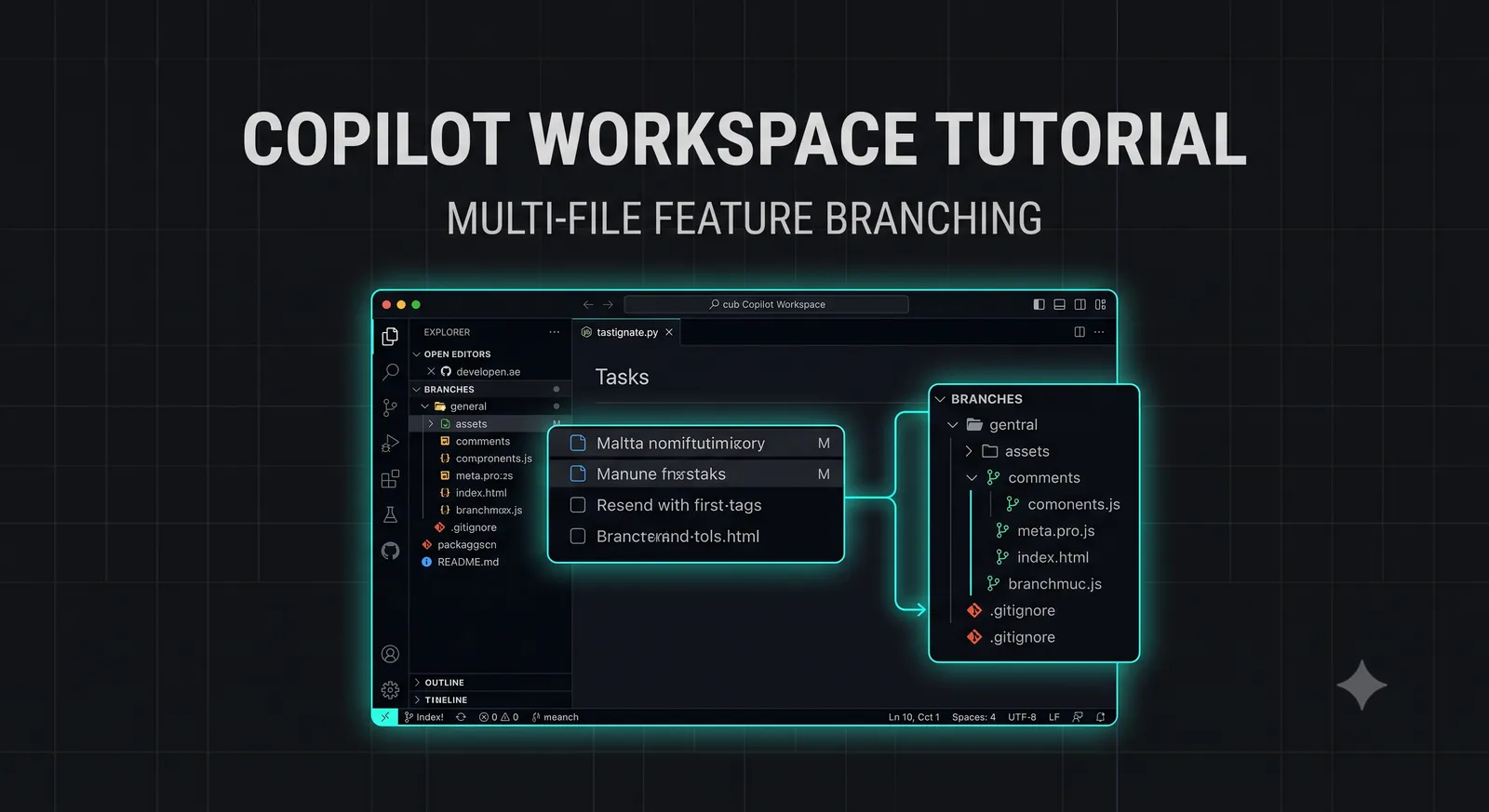
Once you click "Generate Code", Copilot Workspace will execute the plan, modifying multiple files across your codebase in parallel.
Let's look at the actual code generated by Workspace across three separate files to implement this single feature:
File 1: The Database Schema Update
-- supabase/migrations/20260701_create_profiles.sql
CREATE TABLE IF NOT EXISTS profiles (
  id UUID REFERENCES auth.users ON DELETE CASCADE PRIMARY KEY,
  full_name TEXT,
  bio TEXT,
  website TEXT,
  updated_at TIMESTAMP WITH TIME ZONE DEFAULT TIMEZONE('utc'::text, NOW())
);

ALTER TABLE profiles ENABLE ROW LEVEL SECURITY;

CREATE POLICY "Allow users to update their own profile"
ON profiles FOR UPDATE
TO authenticated
USING (auth.uid() = id);
File 2: The Next.js Server Action
// app/actions/profile.ts
'use server';

import { createClient } from '@/utils/supabase/server';
import { revalidatePath } from 'next/cache';
import { z } from 'zod';

const ProfileSchema = z.object({
  fullName: z.string().min(2, 'Name must be at least 2 characters').max(50),
  bio: z.string().max(160).optional(),
  website: z.string().url('Invalid website URL').or(z.literal('')),
});

export async function updateProfile(formData: FormData) {
  const supabase = await createClient();
  const { data: { user } } = await supabase.auth.getUser();

  if (!user) throw new Error('Unauthorized');

  const validation = ProfileSchema.safeParse({
    fullName: formData.get('fullName'),
    bio: formData.get('bio'),
    website: formData.get('website'),
  });

  if (!validation.success) {
    return { success: false, errors: validation.error.flatten().fieldErrors };
  }

  const { error } = await supabase
    .from('profiles')
    .upsert({
      id: user.id,
      full_name: validation.data.fullName,
      bio: validation.data.bio,
      website: validation.data.website,
      updated_at: new Date().toISOString(),
    });

  if (error) return { success: false, message: error.message };

  revalidatePath('/settings/profile');
  return { success: true };
}
GitHub Copilot Workspace Best Practices
To maximize your efficiency and prevent compilation errors when using Workspace, implement these industry-proven best practices:
- Write Granular, Atomic Issues: Never ask Workspace to "Build a complete e-commerce checkout system." Instead, break the task into small, atomic issues: "Implement Stripe payment webhook," "Create checkout cart UI component," and "Write database order creation schema."
- Utilize the Built-In Terminal: Workspace features an integrated cloud terminal. Use it to run your local test suites (
npm test) or build commands (npm run build) before finalizing your changes. - Configure Project Rules: Create a
.github/copilot-instructions.mdfile to provide persistent, global instructions regarding your project's coding standards, design system, and library preferences. Read our guide on CLAUDE.md Configurations to learn more.
Comparison: Workspace vs. Local AI Agents
How does GitHub Copilot Workspace compare to local terminal-based AI agents like Aider or Claude Code?
| Feature | GitHub Copilot Workspace | Local Agents (Aider / Claude Code) |
|---|---|---|
| Execution Environment | Cloud-hosted container | Local machine / terminal |
| GitHub Integration | Native (Issues, PRs, Discussions) | Indirect (Via git CLI commands) |
| User Interface | Visual, step-by-step web UI | Terminal-based CLI |
| Best For | High-level feature branching & PRs | Rapid local refactoring & debugging |
Conclusion: The Future of Software Engineering
GitHub Copilot Workspace represents a massive leap forward in developer productivity. By automating the tedious syntax generation and file-routing aspects of software engineering, Workspace allows developers to focus on architecture, system design, and product validation.
By mastering the agentic pipeline—defining clear intent in issues, steering the AI's plans, and auditing outputs—you can build high-quality, multi-file features in a fraction of the time.
To compare Workspace with other terminal-based AI tools, read our head-to-head comparison of Codex CLI vs Claude Code, or try our interactive .gitignore Generator to bootstrap your next automated repository.