
What Makes a Screen Recorder Good for Tutorials Specifically
Tutorial videos have different needs than a quick screen capture you'd send to a coworker. Good audio recording matters more, since most tutorials rely on narration. Cursor highlighting and click visualization help viewers follow along without confusion. And built-in or easy editing matters, since almost no tutorial gets recorded perfectly in one take. With that in mind, here's how the most commonly recommended tools stack up.
Loom
Loom has become the go-to for quick, casual tutorials, especially in workplace settings where someone needs to explain a process fast without a heavy production process. It records your screen, webcam, and audio simultaneously with almost zero setup, and it automatically generates a shareable link the moment you're done recording, which is genuinely one of its best features for a tutorial that just needs to get to someone quickly.
Pros: Extremely fast to start recording, automatic cloud hosting and sharing, simple built-in trimming, good free tier.
Cons: Limited advanced editing, cloud storage limits on the free plan, less control over final export quality compared to dedicated editing tools.
Best for: Quick internal tutorials, walkthroughs for coworkers or clients, and anyone who values speed over polish.
OBS Studio
OBS Studio is free, open-source, and the tool most YouTubers and serious tutorial creators eventually land on once Loom-style simplicity stops being enough. It's more complex to set up than most other options on this list, but that complexity buys you real control – multiple scenes, custom audio sources, layered overlays, and high-quality recording settings that most paid tools don't offer for free.
Pros: Completely free, extremely flexible and powerful, no watermarks or export limits, works on Windows, Mac, and Linux.
Cons: Steeper learning curve, no built-in video editing (you'll need a separate editor), interface can feel intimidating at first.
Best for: Creators making tutorials regularly who want full control and don't mind a slightly technical setup process.
Camtasia
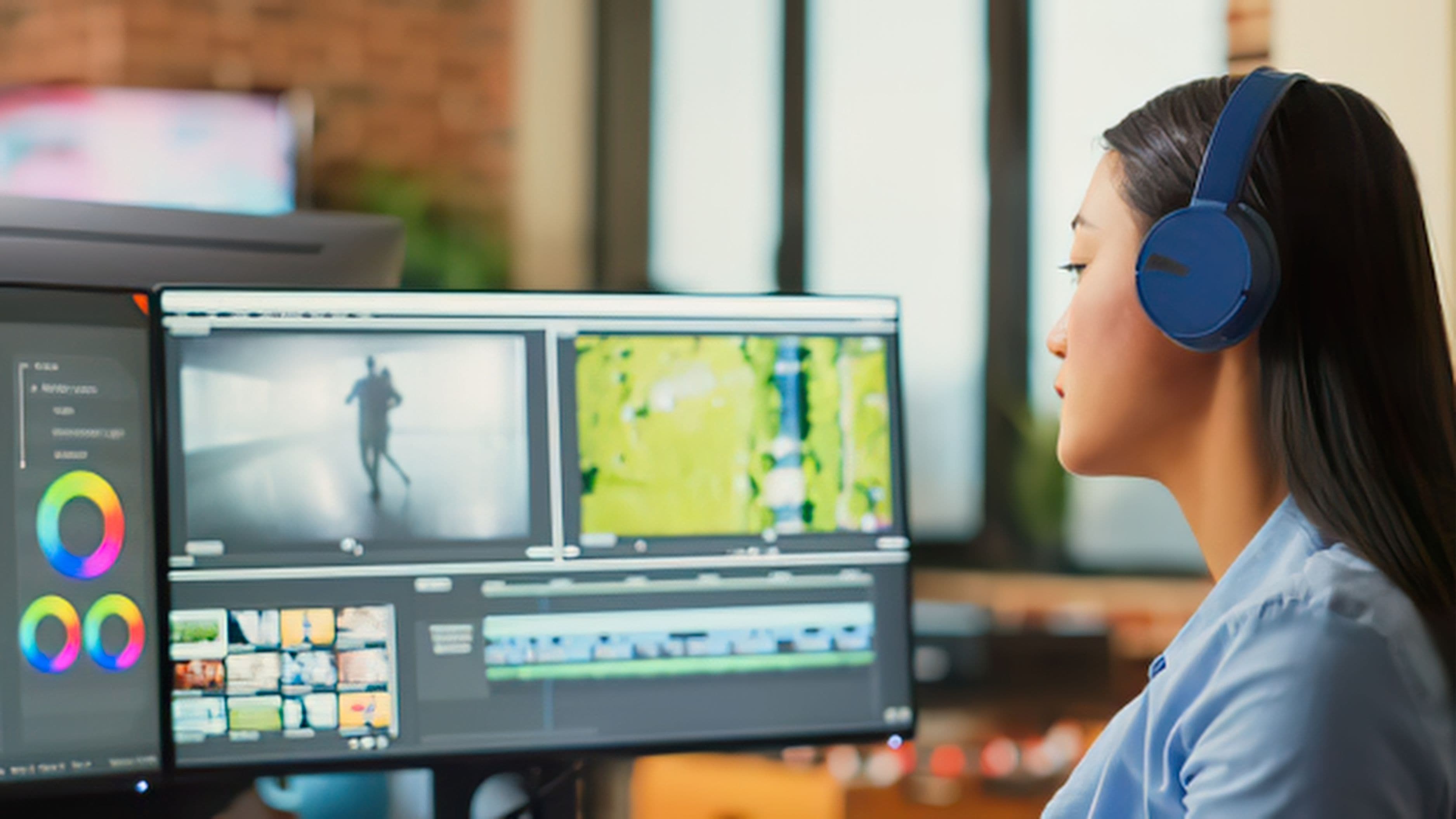
Camtasia is built specifically with tutorials and training videos in mind, and it shows. It combines screen recording with a genuinely capable video editor in the same application, which means you can record, add callouts, zoom effects, captions, and clean transitions without ever switching to a separate program.
Pros: Recording and editing in one app, strong library of tutorial-specific effects (callouts, cursor effects, zoom/pan), good for polished, professional-looking output.
Cons: Paid software with a real cost (one-time license, but not cheap), can feel like more tool than necessary for very simple recordings.
Best for: Anyone making tutorials regularly for a business, course, or paid content where visual polish actually matters.
ScreenPal (formerly Screencast-O-Matic)
ScreenPal sits comfortably between Loom's simplicity and Camtasia's depth. It offers solid recording with a built-in editor that covers most of what a tutorial creator actually needs – trimming, captions, basic effects, and webcam overlay – without the steeper cost or learning curve of more advanced tools.
Pros: Reasonable free tier, built-in editing without needing a separate app, good balance of features and simplicity.
Cons: Watermark and feature limits on the free version, editing tools aren't as advanced as Camtasia's.
Best for: People who want more control than Loom offers but don't need Camtasia's full editing suite.
QuickTime Player (Mac) and Windows Game Bar
For extremely basic tutorial needs, both Mac and Windows have built-in screen recording tools that require no download at all. QuickTime Player on Mac and the Xbox Game Bar on Windows can record your screen with audio, and that's genuinely enough for a simple, no-frills tutorial that doesn't need editing.
Pros: Completely free, already installed, no learning curve.
Cons: No editing features at all, no cursor highlighting or callouts, minimal customization.
Best for: One-off tutorials where you just need to capture something quickly with no intention of editing it afterward.
How to Actually Choose
If you're making a single tutorial and don't plan to do this often, Loom or your device's built-in recorder will cover what you need without any setup cost. If you're planning to make tutorials regularly, whether for a course, a YouTube channel, or ongoing business training content, investing time in OBS Studio (if you're comfortable with a learning curve and want it free) or money in Camtasia (if you want recording and editing combined) tends to pay off quickly once you see how much smoother the process becomes. ScreenPal is worth a look if you want something in between those two extremes without committing fully to either.
FAQ
Do I need a paid tool to make good tutorial videos? No. OBS Studio is free and extremely capable, and even Loom's free tier handles a lot of everyday tutorial needs well.
Which screen recorder is easiest for beginners? Loom and the built-in tools (QuickTime Player, Windows Game Bar) have the lowest learning curve, since they require little to no setup.
Is Camtasia worth the cost for occasional tutorials? If you're only making tutorials rarely, probably not. It makes more sense for people creating tutorial content regularly, where the built-in editing saves real time over the long run.
Can I record both my screen and webcam at the same time with these tools? Yes, most of the tools on this list (Loom, OBS Studio, Camtasia, ScreenPal) support simultaneous screen and webcam recording.
📚 Sources
OBS Project – Official Documentation, https://obsproject.com/wiki/
Loom – Product Overview, https://www.loom.com/
TechSmith – Camtasia Features, https://www.techsmith.com/video-editor.html